Google Analytics (GA4) Connector
Setting up the server-side data stream for GA4
Below we will show you how to set up the automatic transmission of tracking data to Google Analytics 4.
GA4 Server Side Tracking with etracker enables you to
- automatic anonymization before the data is sent to Google
- Use of the familiar Google Analytics interface and reporting functions
- Avoidance of browser restrictions and data loss due to adblockers
- Reliable evaluations without the need for consent in accordance with GDPR and TDDDG
- Full implementation of etracker analytics in consent-free or hybrid mode including set up event, conversion and e-commerce tracking if applicable
- Access to a Google Analytics property
To test your existing GA4 integration and server-side tracking via etracker in parallel, create a new Google Analytics property that only receives the data generated by etracker. After a successful test, you can deactivate the previous property or redirect the server-side tracking to it.
Setting up the Google Analytics data stream
The setup only requires three steps.
Step 1: Create Google Analytics property
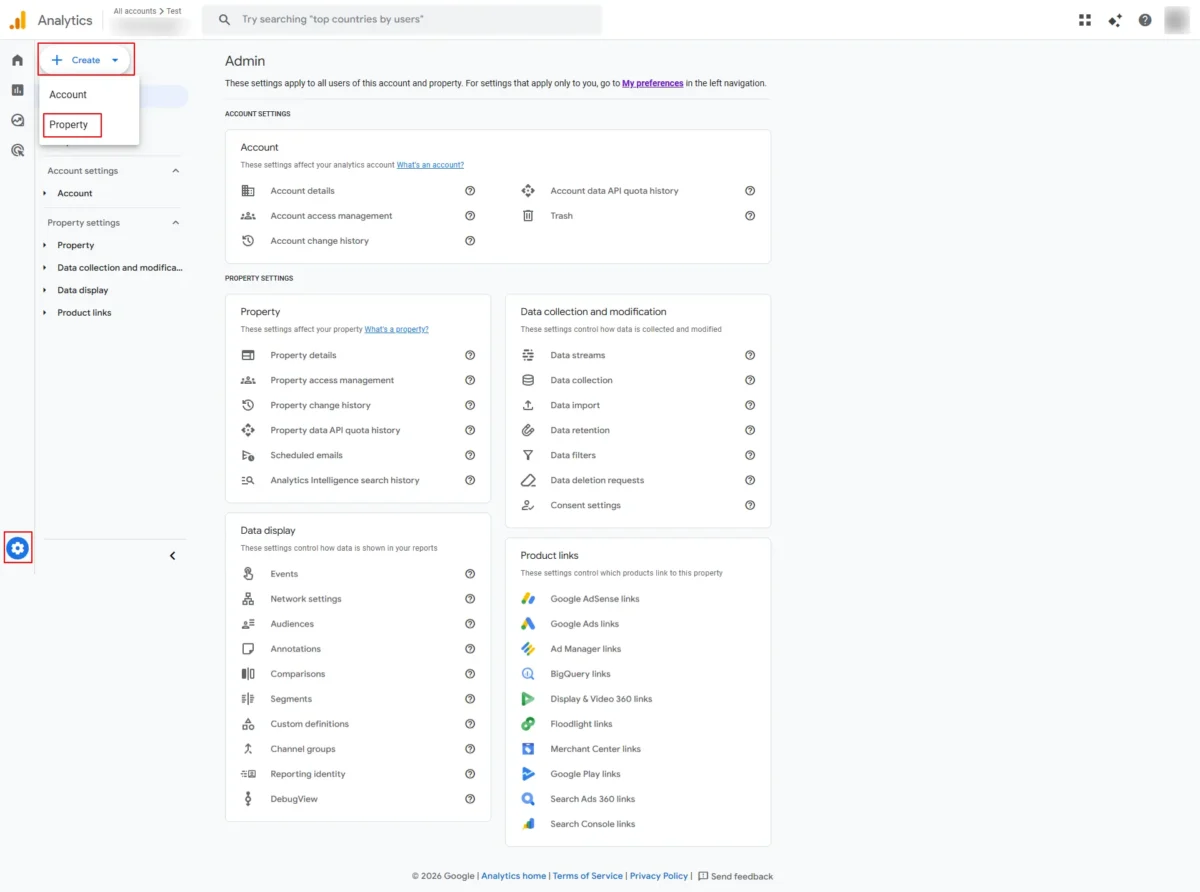
To create a new Google Analytics property, click on Settings → + Create → Property in your Google Analytics account.
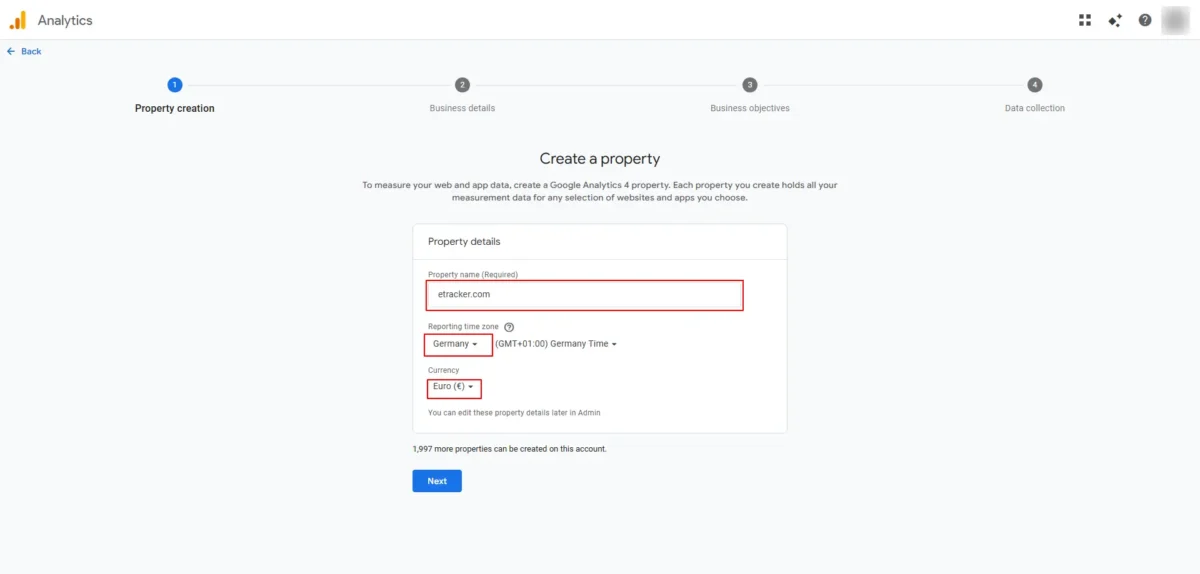
Follow the instructions to create a new property. Choose any name for your property, Germany as the time zone and Euro as the currency. Click on Next to proceed to the next step:
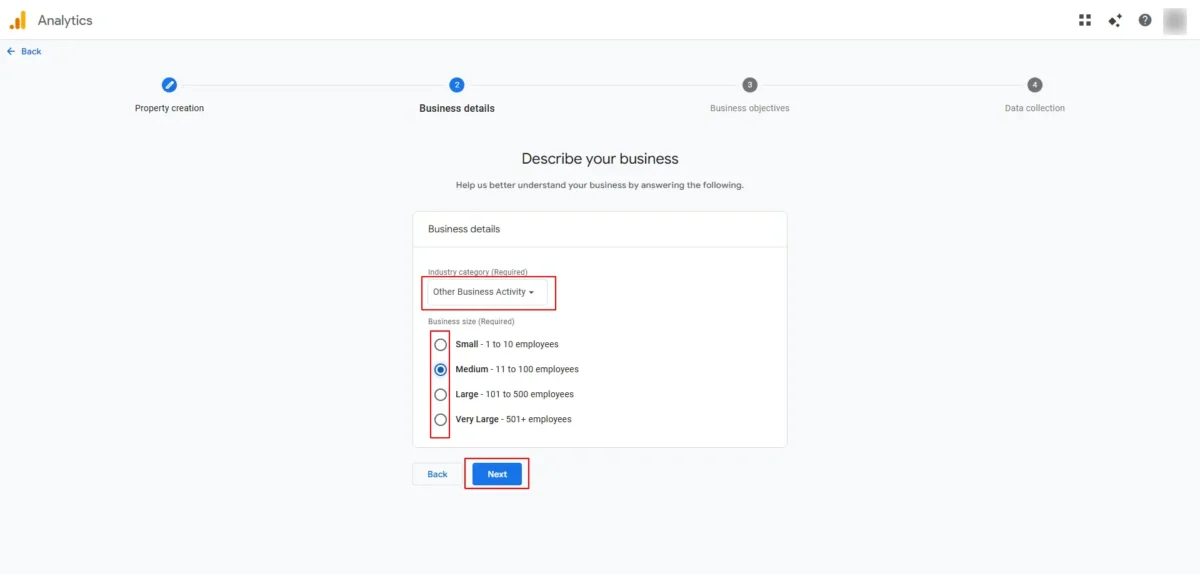
Select the appropriate industry category and company size:
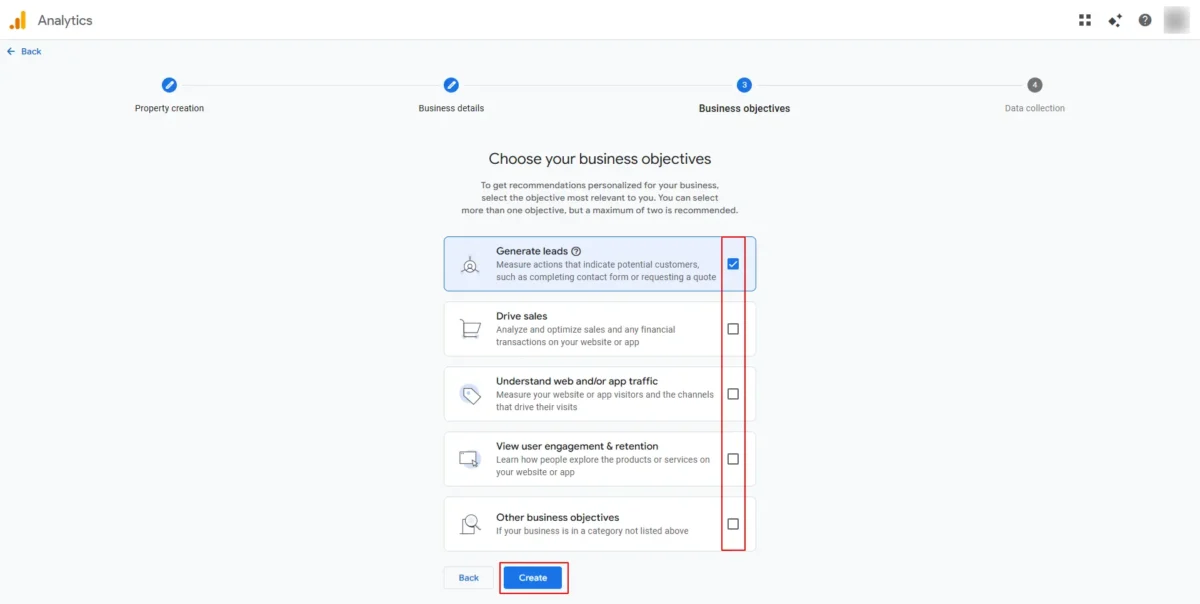
The next step is to define your business objective:
Select Web for data collection, then enter the website URL and a stream name. Complete the creation of the property by clicking on Create and continue.
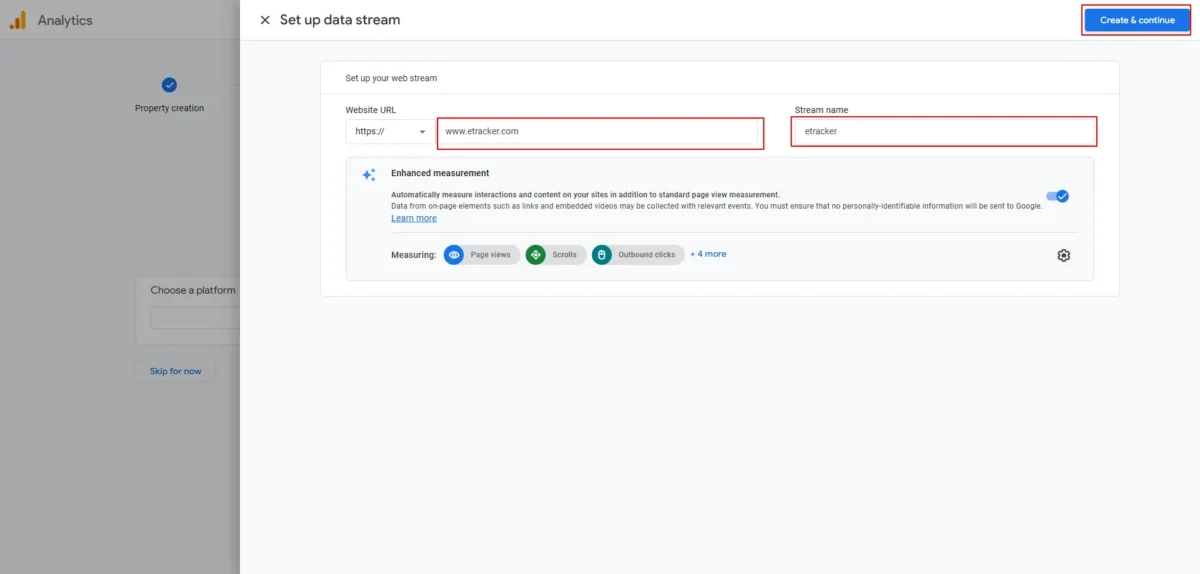
Skip the Google Tag setup by clicking on the close icon to go directly to the next step.
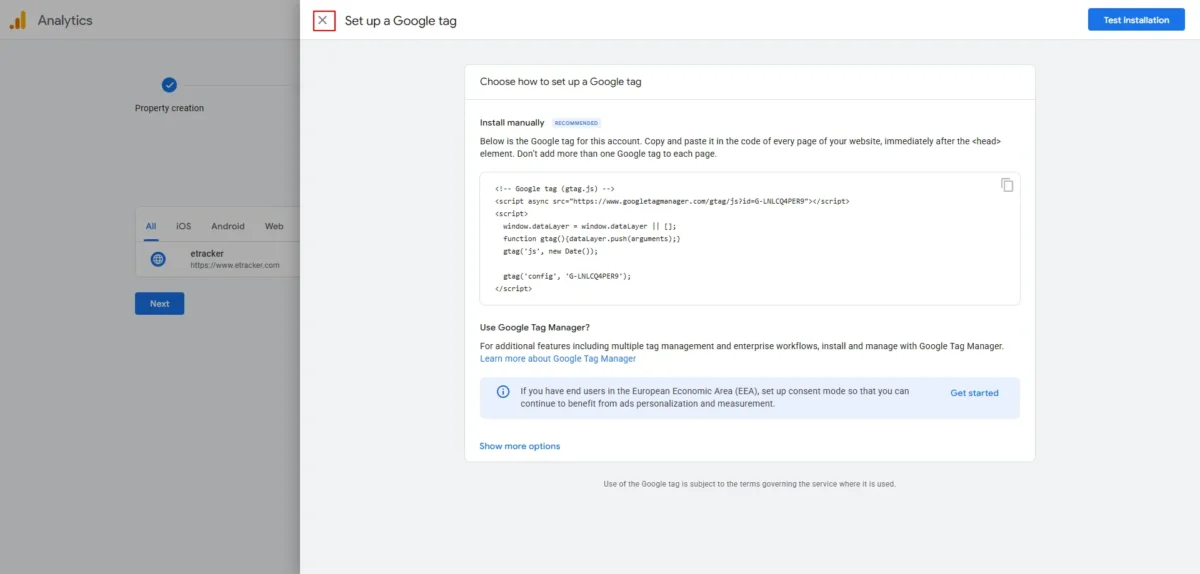
Step 2: Create access token
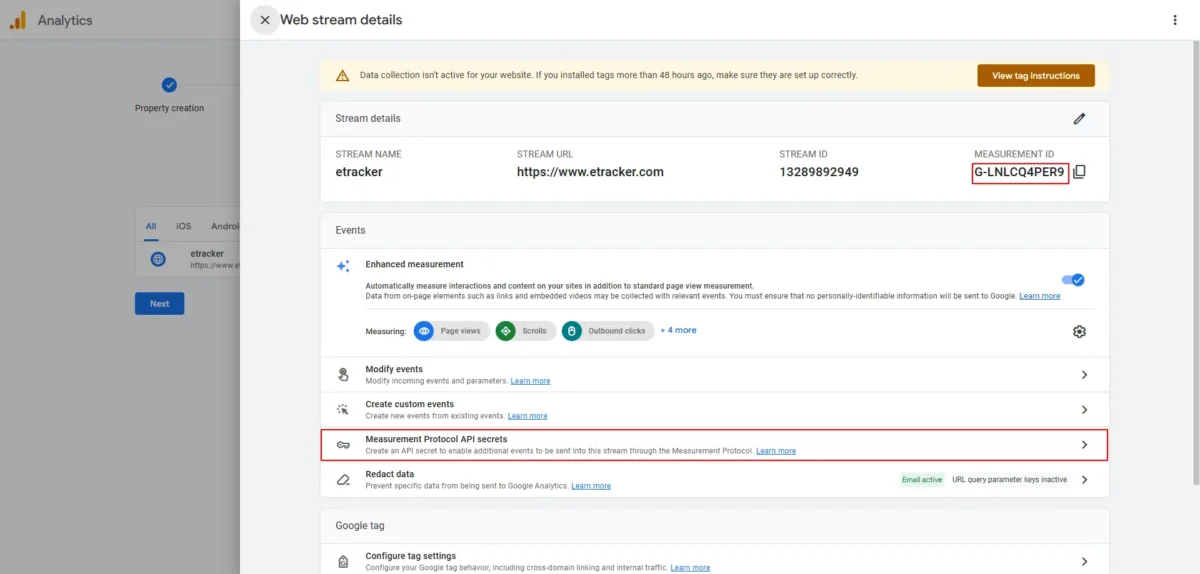
Copy the measurement ID and click on Measurement Protocol – API Secrets.
Select Verify and then confirm the collection of user data.
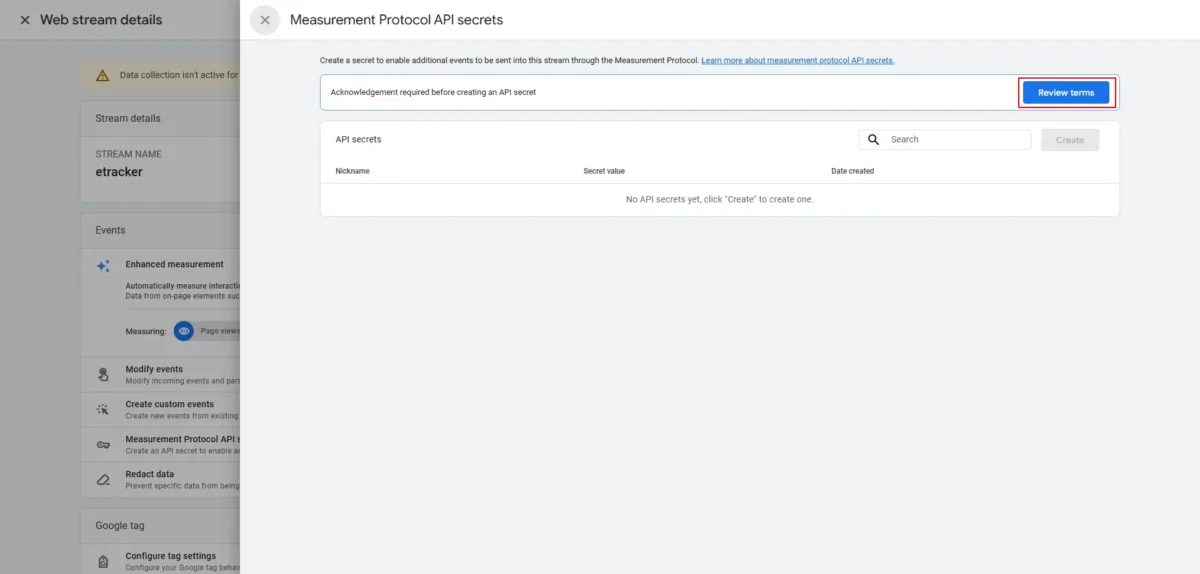
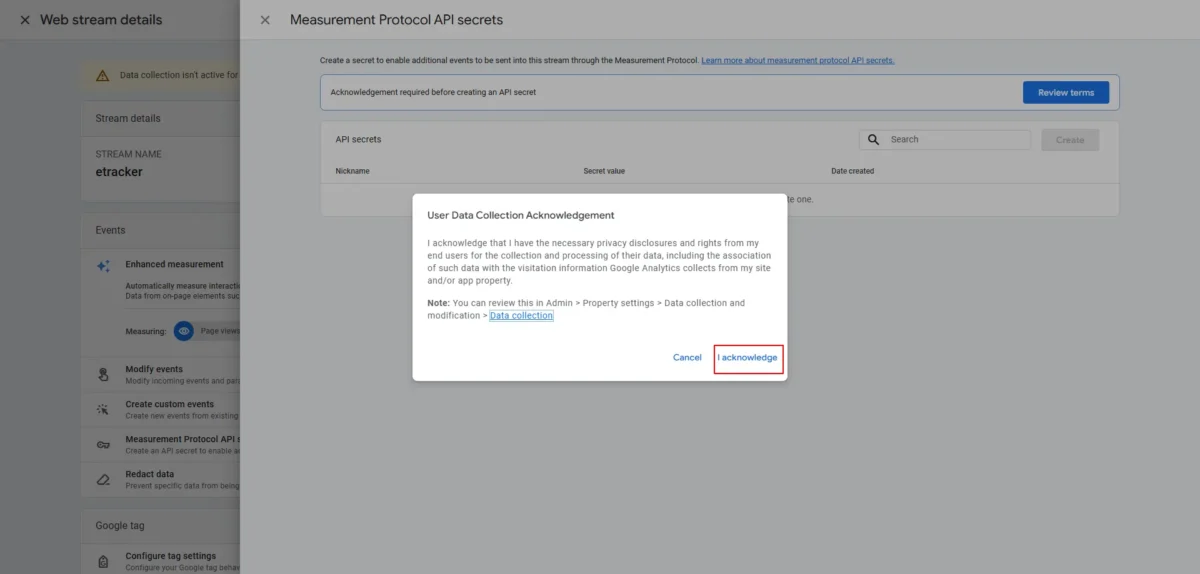
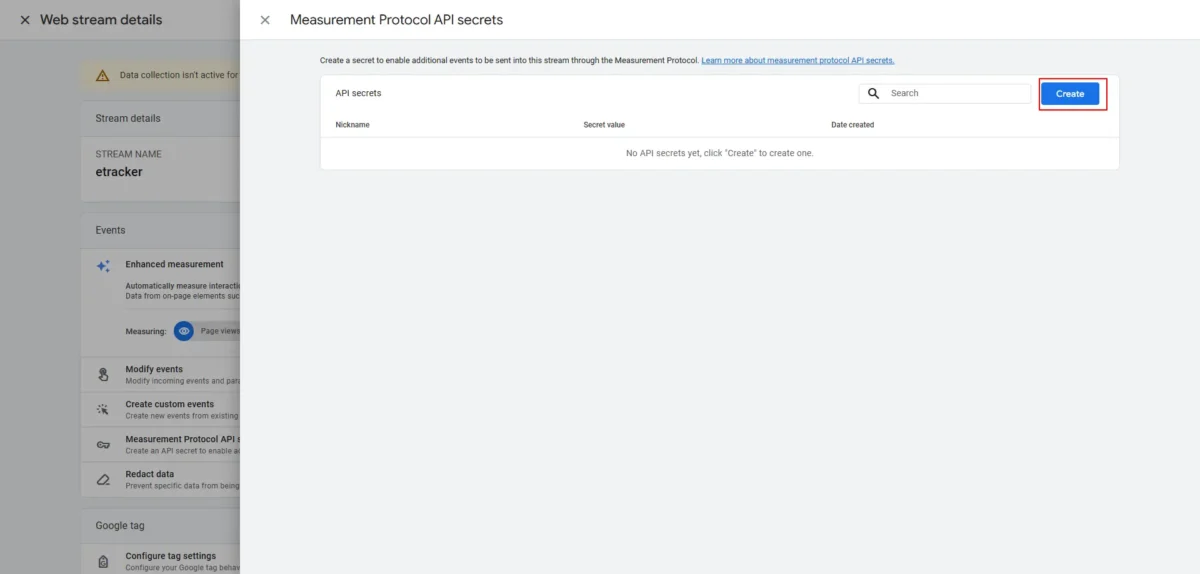
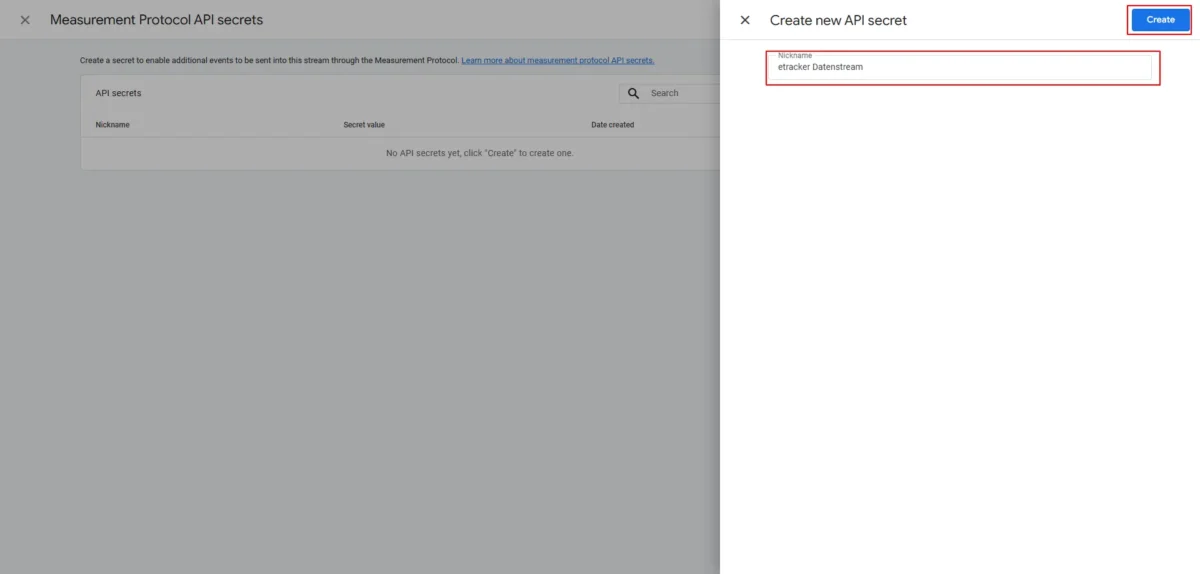
Select Create, enter any alias and end the process with Create.
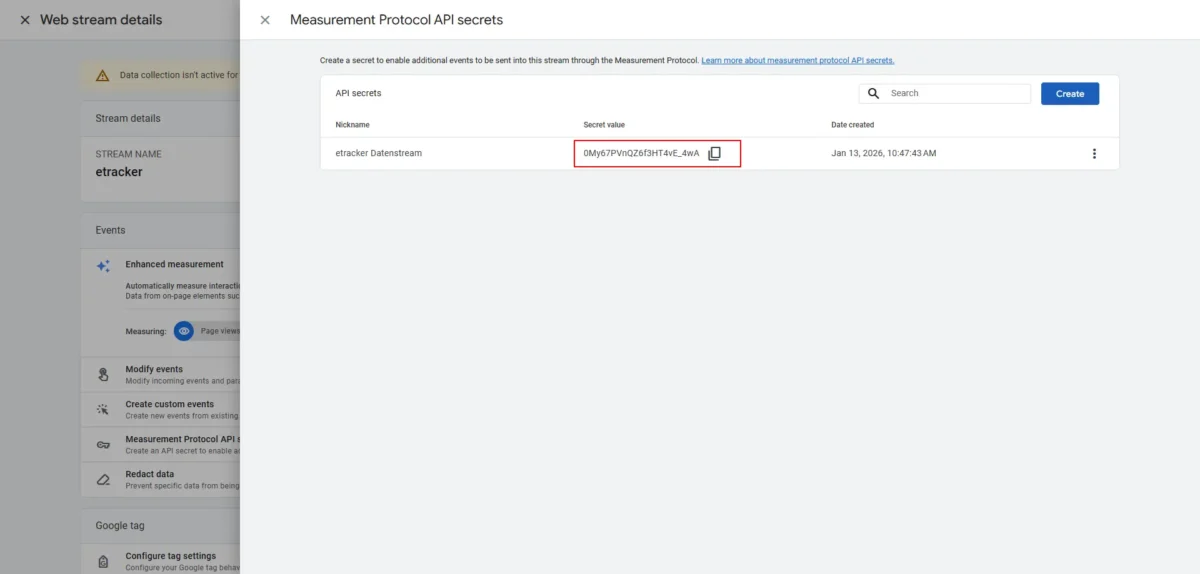
Copy the secret value to the clipboard, then close all overlays and end the process with Next.
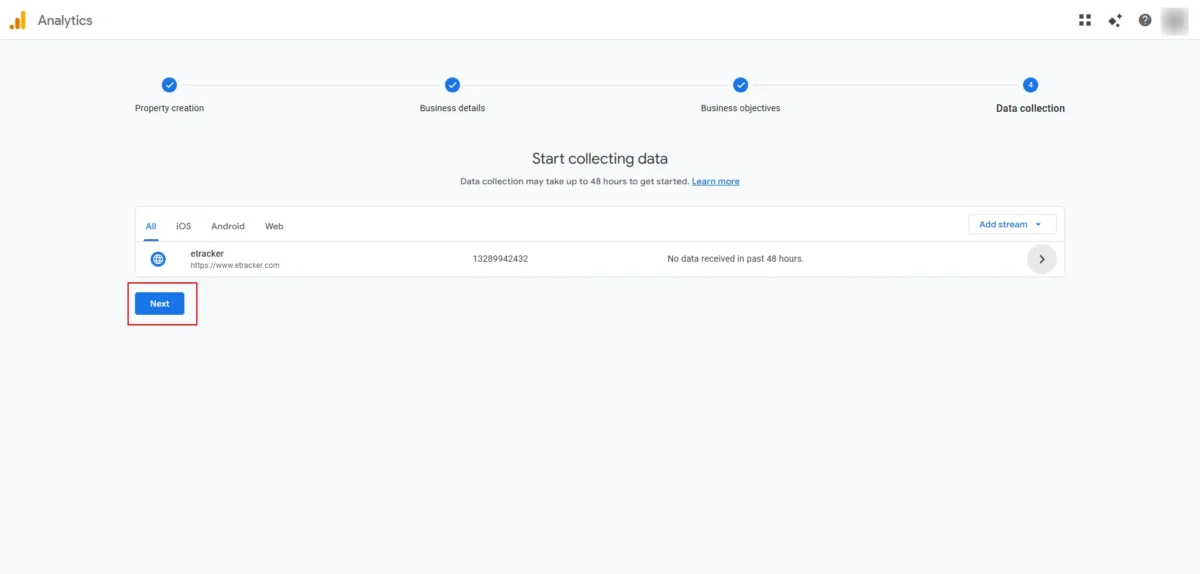
Continue with the setup of the data stream in etracker analytics.
Step 3: Setting up the Google Analytics data stream in etracker analytics
Paste the previously copied Secret value and the Measurement ID of your Google Analytics property into the corresponding fields
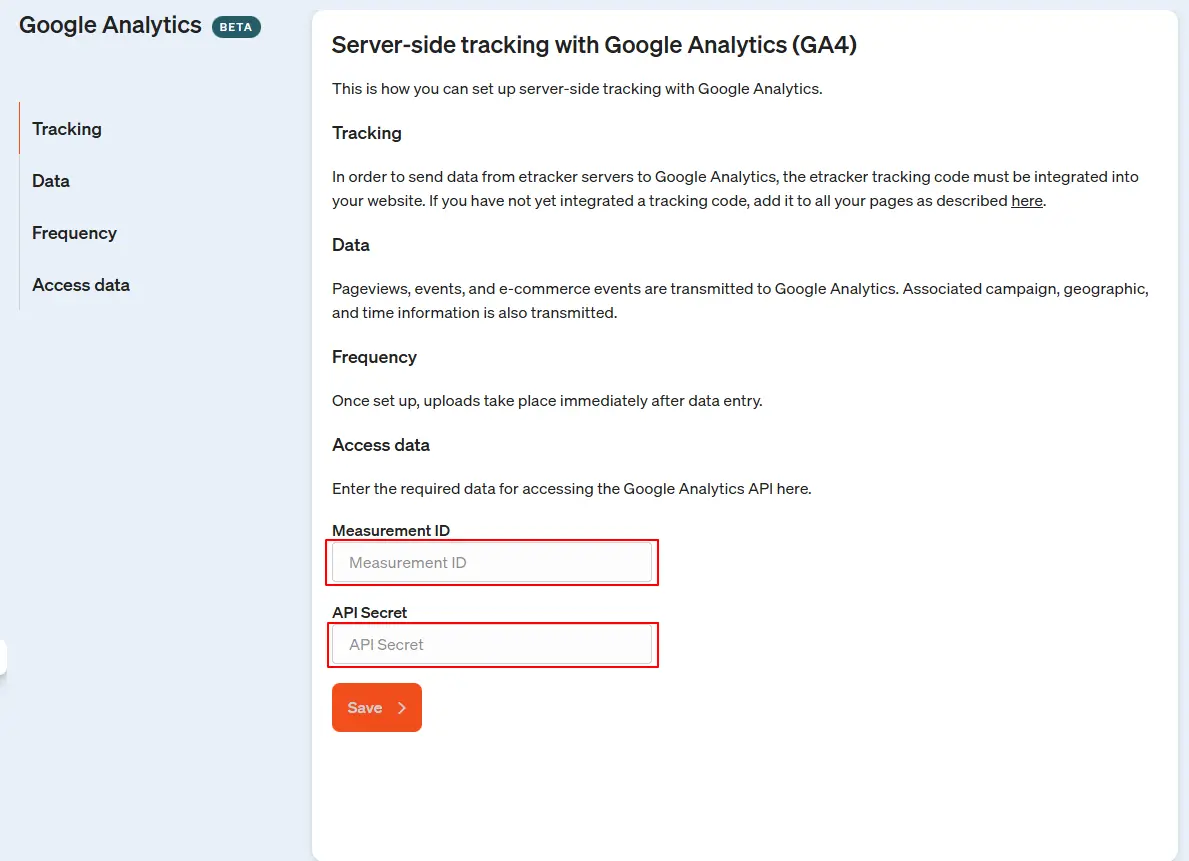
The server-side data stream between Google Analytics 4 and etracker is thus set up and the tracking data collected is automatically sent to GA4 and can be analyzed in the familiar GA4 interface.