LinkedIn Ads Connector
Setting up LinkedIn Ads conversion tracking
Below we will show you how to set up the campaign measurement of LinkedIn Ads and the automatic transmission of conversion data to LinkedIn.
The automatic upload of conversion data to LinkedIn makes it possible for you,
- see the conversion rates and sales of your campaigns directly in the LinkedIn Campaign Manager, so that you can manage campaigns completely there.
- conversions and sales for automatic bidding strategies such as target CPA or target ROAS.
Prerequisites:
- etracker analytics Pro or Enterprise Edition with administration rights
- Access to the LinkedIn Campaign Manager
- Conversion actions are set up in etracker analytics – either as orders (leads), purchases (sales), target achievements (in conversion processes) or Tag Manager conversions
The facility consists of these points:
- Creation of a token in the LinkedIn Campaign Manager
- Setting up LinkedIn Ads campaign tracking.
Setting up the LinkedIn Ads conversion upload
The setup is done in just two steps:
Step 1: Setting up a data source
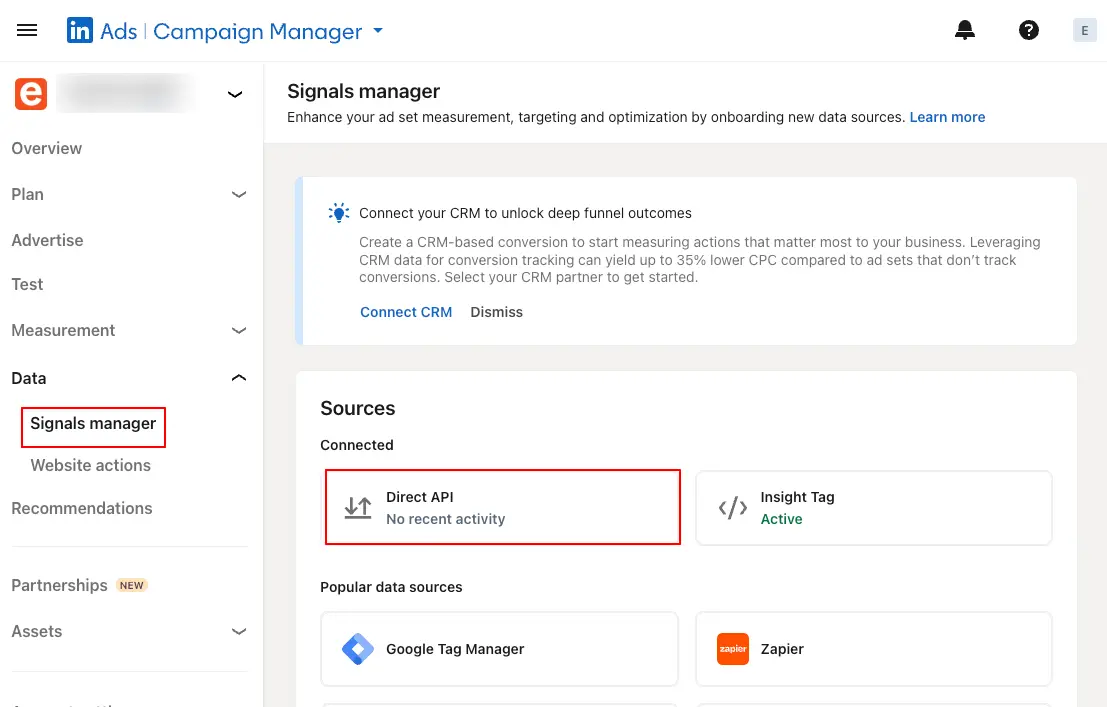
To create an access token, click on Data → Signal Manager:in → Direct API in the LinkedIn Campaign Manager menu bar.
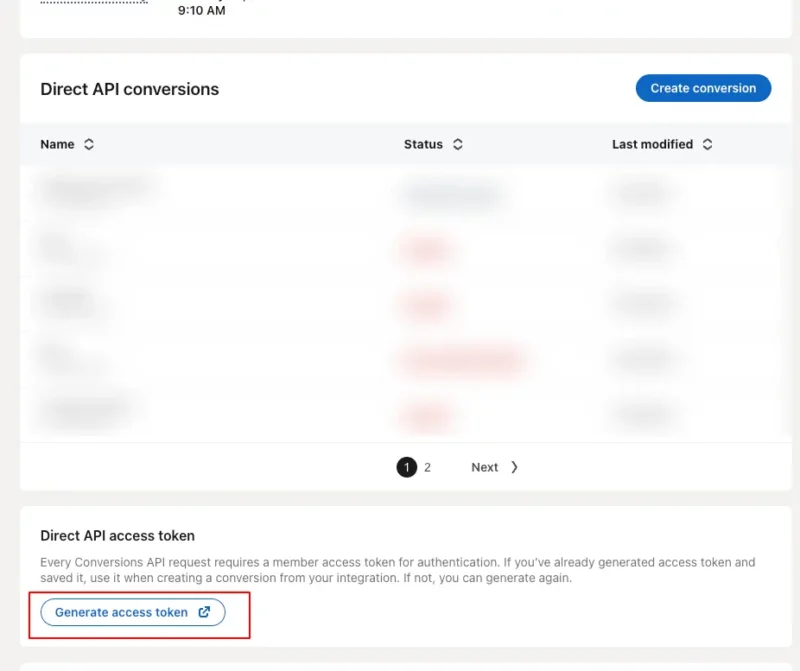
Click on Generate access token and confirm the browser’s access authorization request:
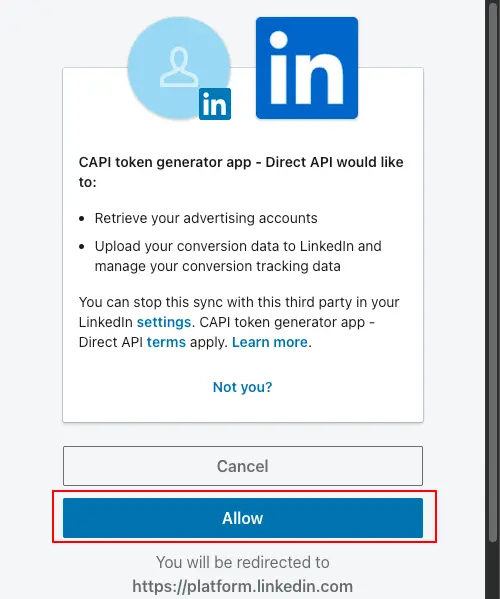
Save the token for later use and complete the creation of an access token.
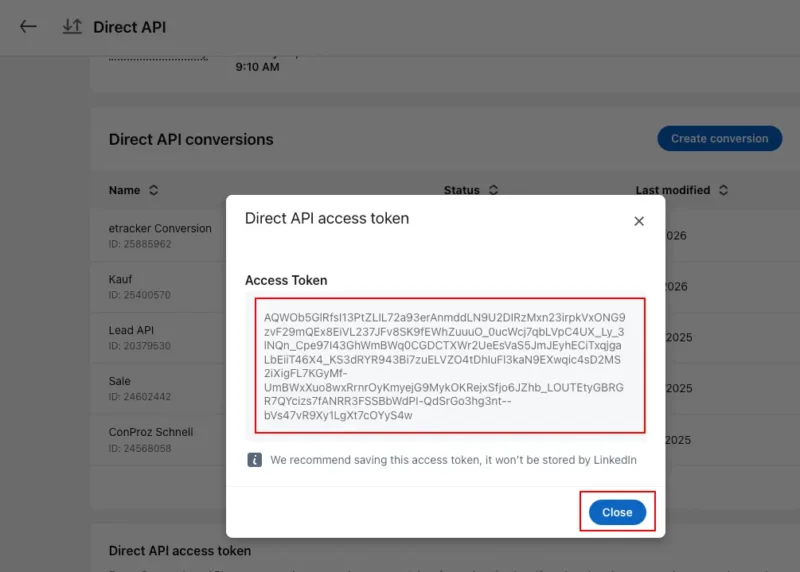
Also copy the account ID of your LinkedIn account:
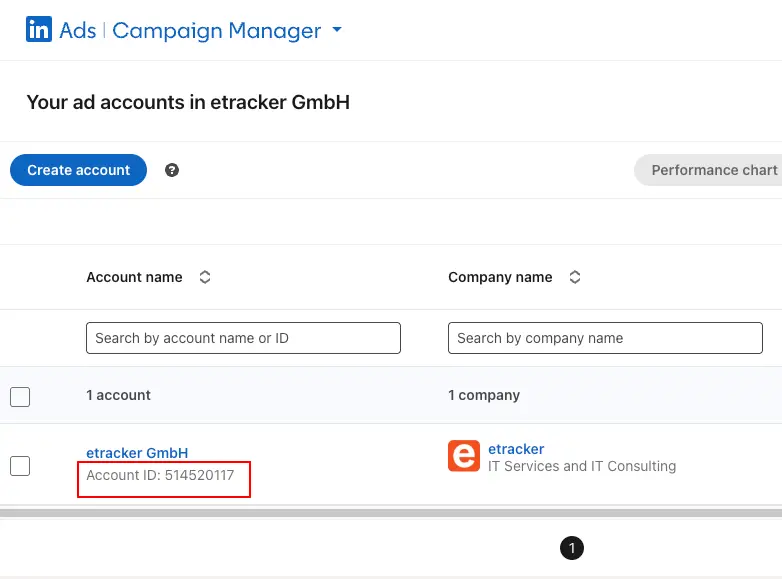
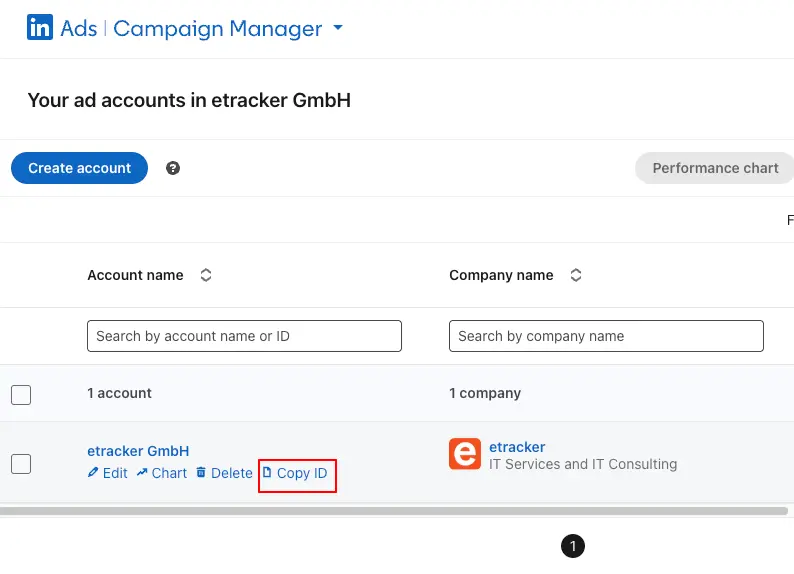
Step 2: Setting up the conversion upload in etracker analytics
Go to Configuration → Conversion upload:
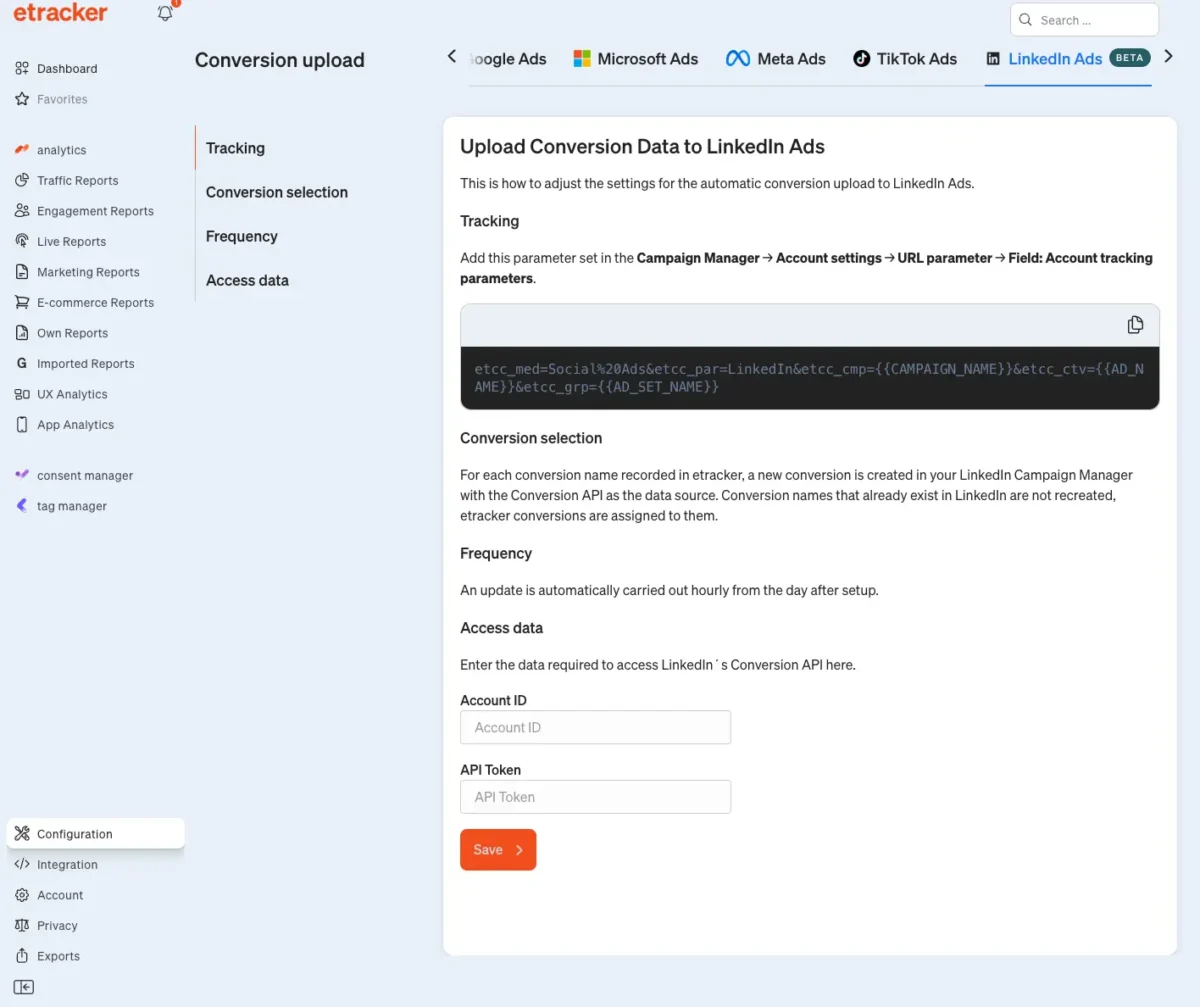
Add the access token and account ID created in step 1 and click on Save.
Setting up the LinkedIn Ads campaign tracking
Click on the parameter field to copy the displayed parameter set.
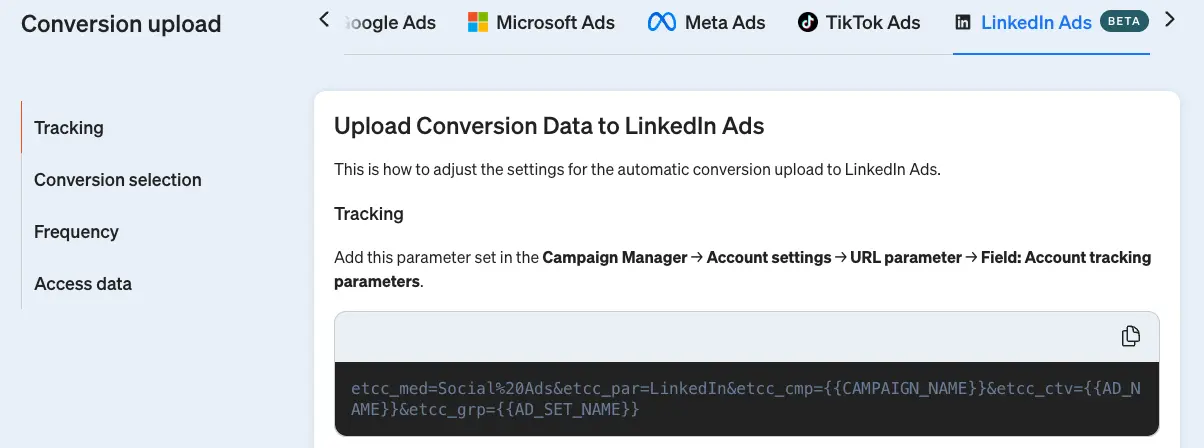
Add this parameter set in the Campaign Manager → Account Settings → URL Parameters → Field: Account Tracking Parameters.
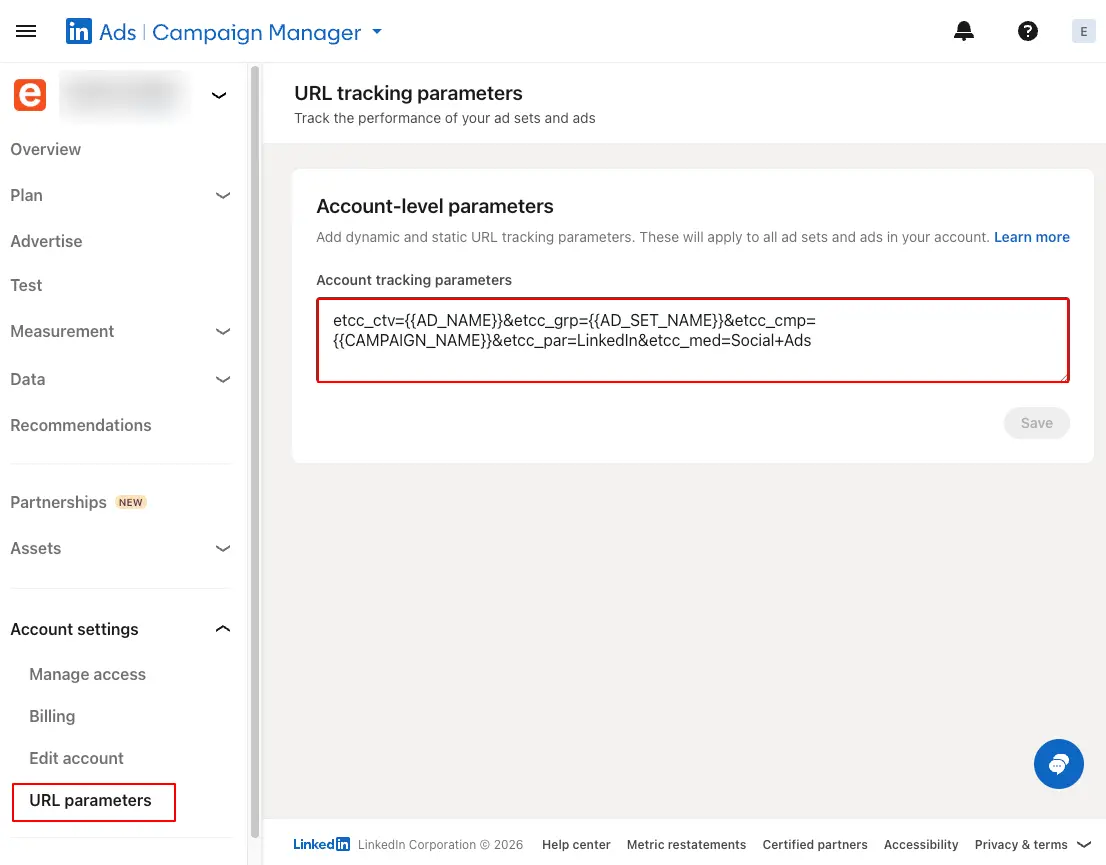
This means that all visits via LinkedIn Ads are recorded in etracker analytics with the associated campaign information and conversions are attributed according to the attribution models.