Segments
Our etracker e-learning platform offers a free video course titled “Reporting Basics,” which explains the topics “segment groups,” “channel grouping,” and “behavioral segments” step by step.
Click here to go directly to the course:
https://academy.etracker.com/course/reporting-grundlagen

Introduction and delimitation
Segments can be used to examine individual subsets of the report data using sophisticated conditions.
The dimensions in the reports enable a granular view of the data and therefore deep insights into visitor behavior and campaign efficiency. By combining several dimensions, you also implicitly work with AND-OR conditions. However, no key figures can be integrated into the drill-downs.
Example:
The dimensions “Page name” plus “Device type” can be used to break down all visits from mobile devices to the start page. However, an additional condition such as “Dwell time > 30 seconds” cannot be added as it relates to a key figure.
Filters allow you to limit dimension entries, but not the visits behind them.
Example:
The filter “Include results with page views greater than 10” in the Pages report returns all pages with more than 10 page views in the selected time period. This differs fundamentally from a selection of visits with more than 10 page views in the respective sessions.
The segments (also known as behavior filters) are therefore a very powerful tool for in-depth analysis alongside the multiple dimensions and filters.
Add segment
About Configuration → Segments user-defined segments can be managed and added.
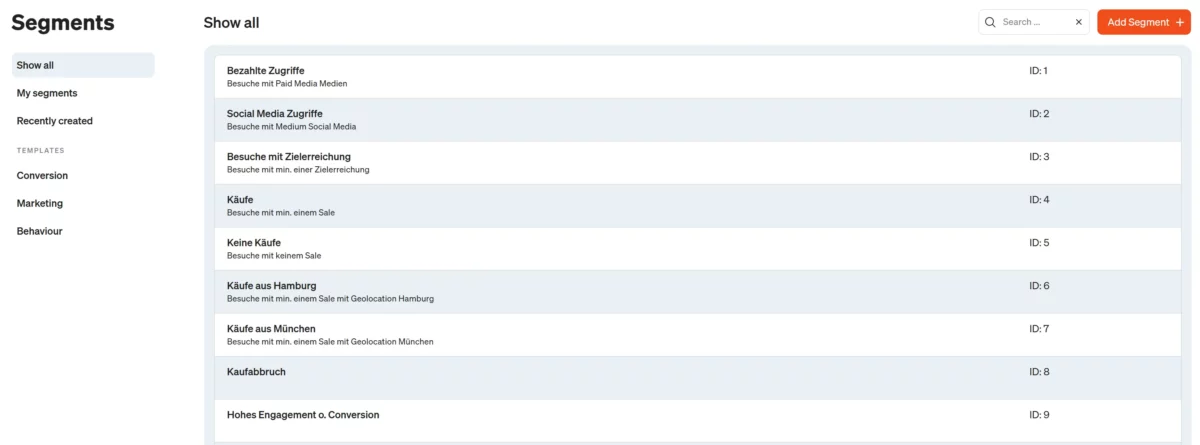
A new segment can be created from a template or completely freely. The templates can be adopted directly or adapted individually.
If you want to start with a template, first click on the relevant template and then on Copy from template.

However, if you want to start with an empty condition, click on the button at the top right:
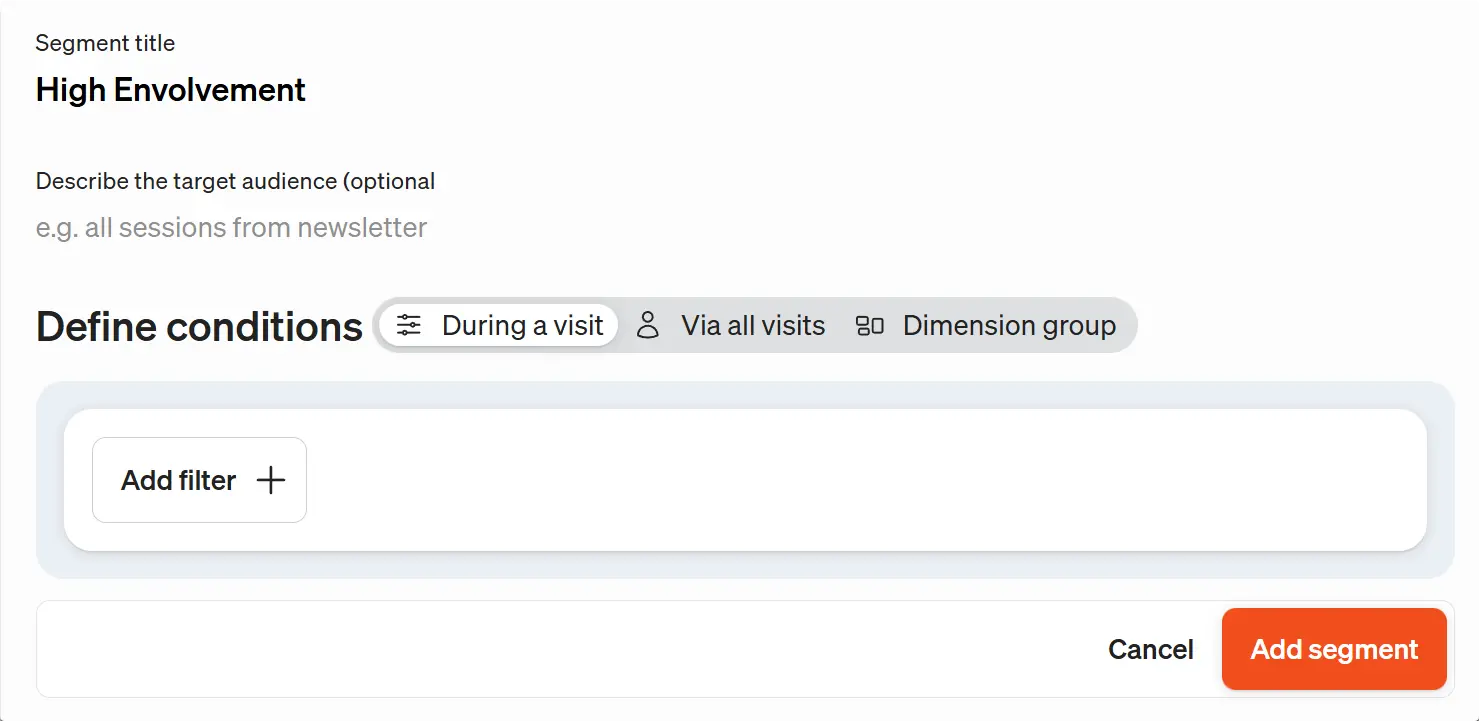
In the next step, you can define the conditions for the segment. If you want to create a behavioral segment using metrics, select “Within a visit” or “Across all visits.” If, on the other hand, you simply want to aggregate dimension values, select “Dimension Group.” Dimension groups are preferable to behavioral segments because they perform better and are more resource-efficient to process.
Next, click Add Filter + to select either a dimension or (for behavioral segments) a metric.
For each dimension, you can then select whether it should be used as a positive or negative condition, which comparison operator (such as “exactly matches”) to use, and which value should apply. The available operators and values appear as a drop-down list when you click in the respective field.
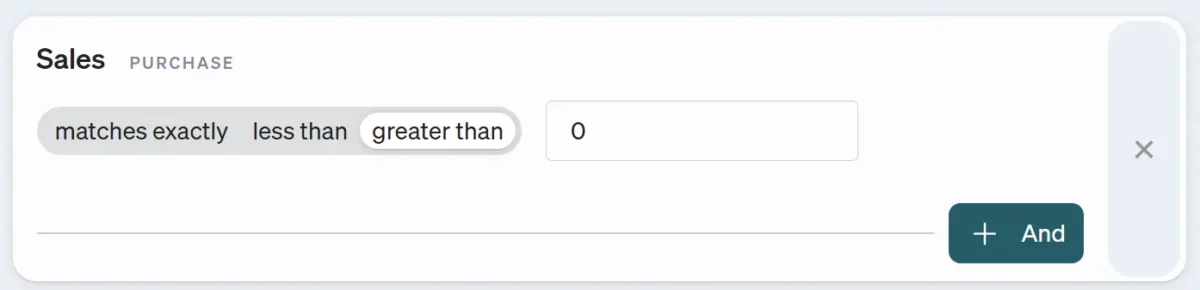
For a key figure, only the comparison operator and the value need to be selected.
Further conditions can be added using AND-OR operations. With AND operations, all conditions must be fulfilled, whereas with OR operations (in the sense of “or also”) only at least one of the conditions must apply.
Example:
So-called shopping cart abandoners are defined by an AND link of “Number added to shopping cart is greater than 0” AND “Leads order equals exactly 0”.
Then enter a segment title at the top left and an optional description. Click on Add segment at the bottom right to complete the creation and save the segment.
The AND operation does not involve sequences (sequential conditions in the sense of “and then”) that are defined. This means that the order within the visit does not play a role in whether the condition applies. All segment configurations refer to visits (and not visitors across several visits), i.e. the segments represent subsets of the visits that have taken place.
Dimension groups
A dimension group is a special type of user-defined segment. Dimension groups can be created from any basic dimensions. However, a combination with key figure values is not possible. This allows very flexible groups such as the grouping of months into quarters or selected pages into content groups.
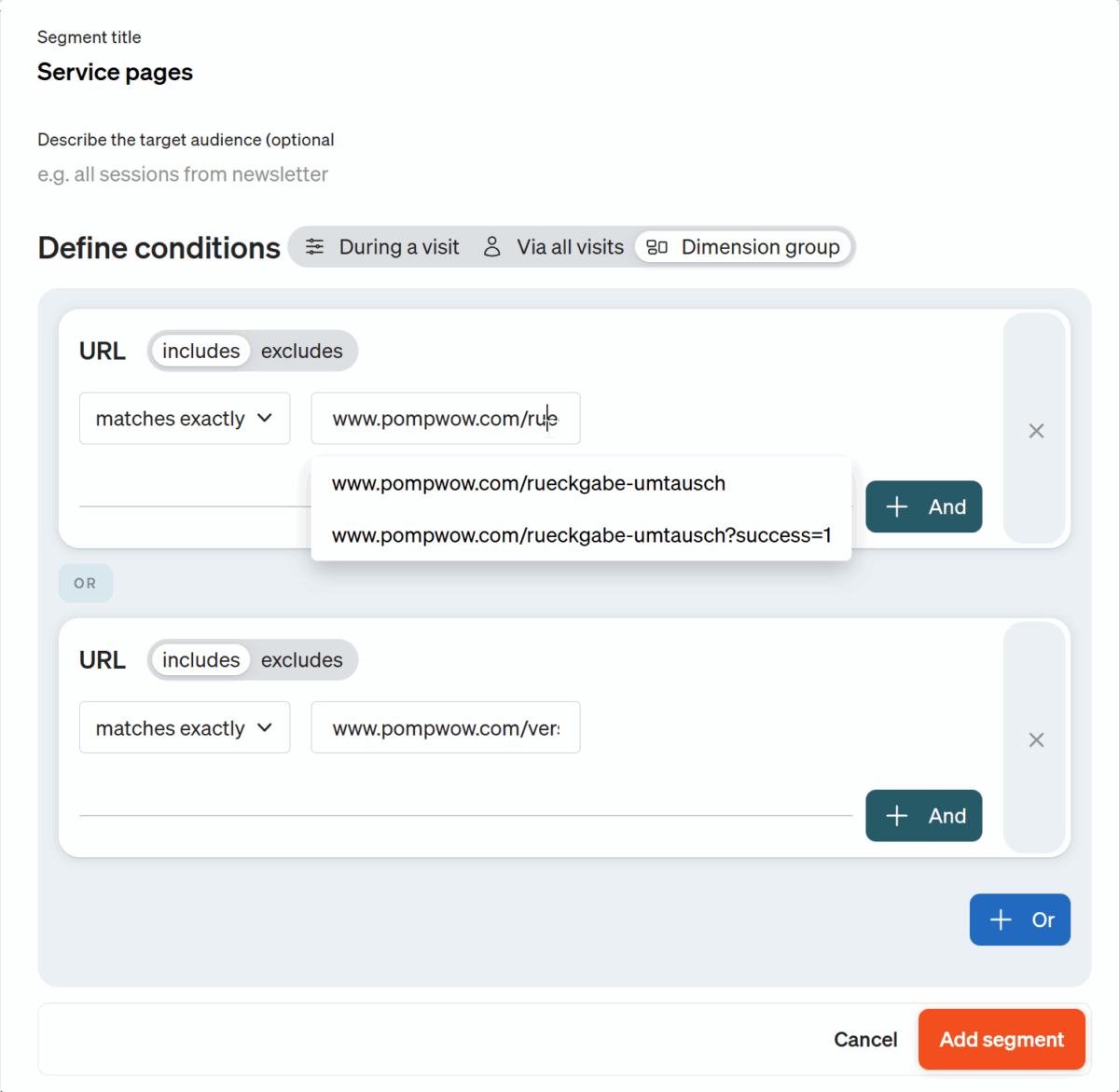
For general groupings by media type, source, or campaign, we recommend configuring custom channels, as these can be easily incorporated into reports using the “Channels” dimension.
Edit segments
All created segments can be found in the My segments area and can be edited, deleted or copied. The action options are displayed by moving the mouse over the corresponding segment.
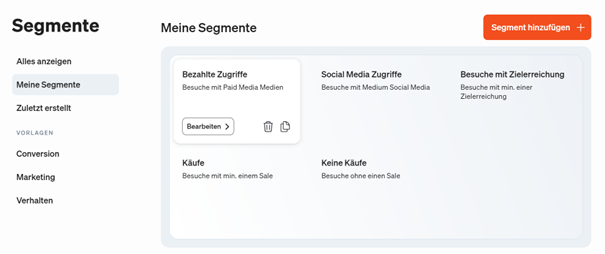
The copy function is particularly helpful when you want to create a “counter-segment” for an existing segment (e.g., “buyers” vs. “non-buyers”). A comparison with the population is always possible. However, the population always includes the currently selected segment. Instead of a segment and its “counterpart,” it is also possible to define multiple segments, such as low, medium, and high engagement based on the number of page views or time spent on the site.
Apply segments
To break down reports by segment, click the ” Select Segment ” button above the report table. You can now select one or more segments and add them to your report by clicking ” Done.”
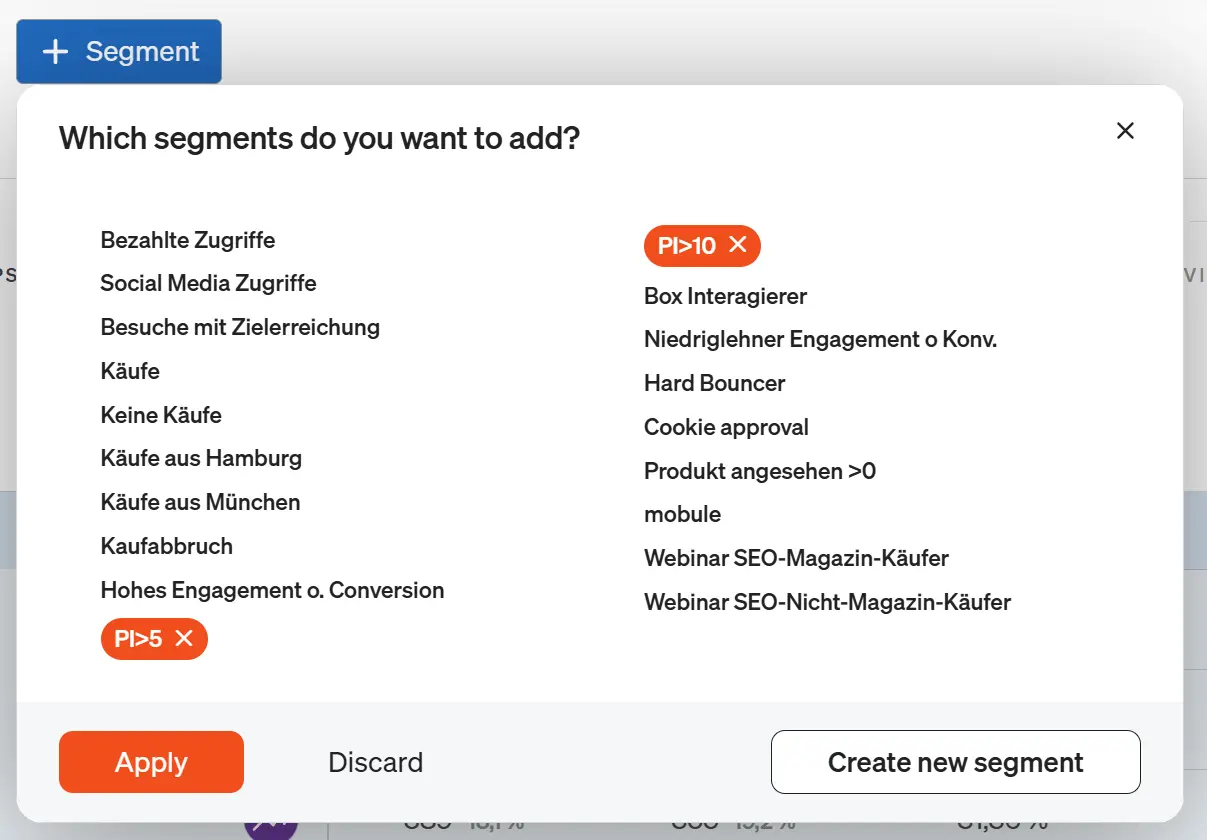
By default, the selected segments are added as an additional dimension to the right of the previously selected dimensions. The order of the dimensions can then be changed as desired by dragging the segment dimension with the mouse. In the following example, the segment dimension was moved to the left, in front of the page names, to display all landing pages for the “Purchases” segment:

Segmentation scope
The segmentation function is available in all etracker analytics editions with different quotas in terms of the number of segments:
- Basic: 1 segment
- Pro: 5 segments
- Enterprise: 100 segments
The dimensions and metrics available for the rules also depend on the edition. During configuration, you can access all available dimensions and metrics in the reports.
The number of segments per report is unlimited, as is the time period selection. Data for the segments is also available retrospectively and not just from the creation of the segment.